
the psycho cat on an HP Mini with Ubuntu
Just Beginning
Introduction
Read this first before you try Ubuntu*
Which Ubuntu to pick?
Getting Ubuntu
Making a bootable USB of Ubuntu
Ubuntu inside Windows
Dual-boot with Windows
Install Desktop CD Ubuntu
Modest Specs
Install Software
Security in Ubuntu
Where's the Terminal?
Password in Terminal
Next Steps
Install Proprietary Drivers
Mount Windows
Install Proprietary Plugins
Finding iTunes Alternatives
Use Wine
Beyond the Basics
Backing up Ubuntu
Upgrade Ubuntu*
Change boot menu
Playing Around
Unity to classic Gnome
Unity Gnome/KDE Plasma Comparison
Install KDE
Install XFCE
Pure Ubuntu
Pure Kubuntu
Pure Xubuntu
Pure Lubuntu
Troubleshooting
Can't sudo
Graphical sudo
Forgot password
* Off-site link
Cheap Plugs
If you've found these tutorials useful, please consider donating a small amount to one of my favorite non-profits/charities. Every little bit helps.
You may also want to consider donating directly to the Ubuntu project.
How to install KDE on Ubuntu

This work is licensed under a Creative Commons Attribution-ShareAlike 3.0 Unported License.
Ubuntu's default desktop environment is Gnome Unity. Sometimes people using Ubuntu want to try out KDE as well, though.
Warning: having KDE and Gnome together means you'll have cluttered application menus full of KDE applications and Gnome applications. There may be other minor integration issues, but none should impact functionality, and you can find help for those on the Ubuntu Forums.
Even though these instructions are for KDE, the same principle applies for adding Gnome to Kubuntu or XFCE to Kubuntu or Ubuntu. Basically, you install the desktop environment, log out, and choose the desktop environment.
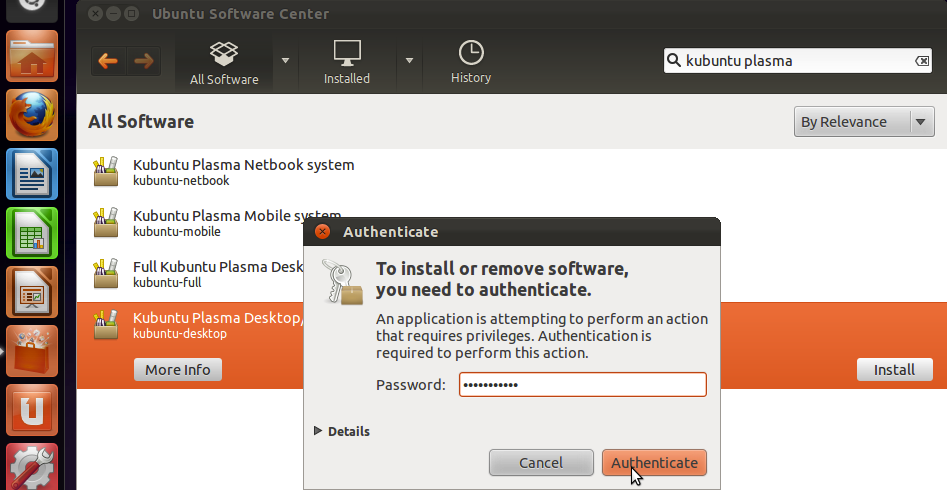
Go to to the Ubuntu Software Center, search for kubuntu-desktop and then install Kubuntu Plasma Desktop.

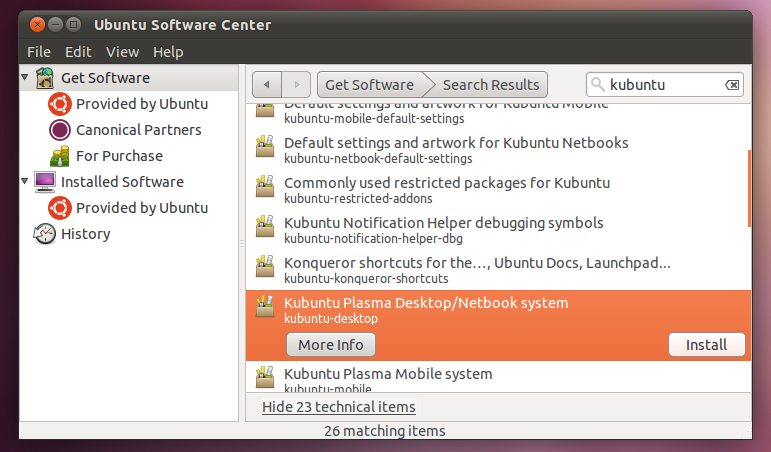
If you're using Ubuntu 11.04, you'll have to click on Show __ technical items in order to get kubuntu-desktop to show up for installation.
KDE will start downloading and installing. You can click In Progress if you want to see the percentage of the task that's complete.
Note: this will take significantly longer than other software packages to install, because this actually brings in a lot of packages, not just one. The Kubuntu Plasma Desktop system is what is called a metapackage, which means it's an empty package, which is just a pointer to a whole group of other packages.
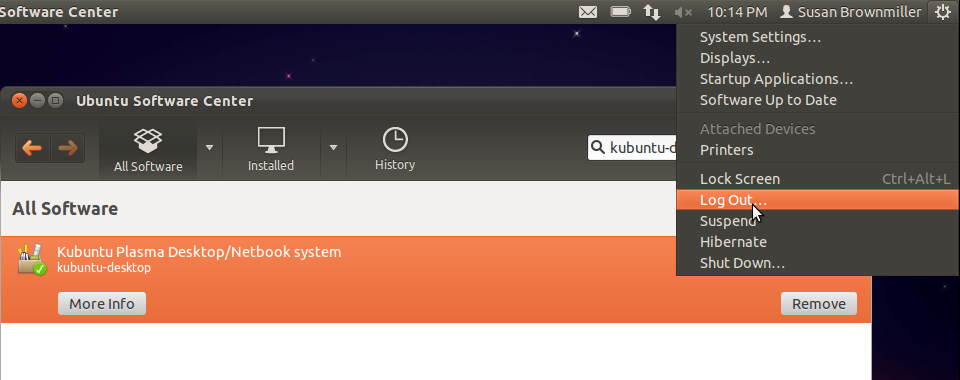
Log out.

Then, before you log back in again, select KDE (Kubuntu's default desktop environment).

You'll see various icons load up.
After that, you should be logged into KDE. And if you want to switch back to Gnome, you just log out and choose the Gnome session instead of KDE.
Note that native Gnome applications will be available in KDE, and native KDE applications will be available in Gnome. Some consider this a convenience. Others consider it an annoyance. That's the way it is, though.
If you decide you want to remove KDE, it's not enough to go to Ubuntu Software Center and remove the Kubuntu Plasma Desktop system package, as that is just an empty package that points to all the software packages that make up a default Kubuntu installation. Removing the pointer package won't remove all the packages it points to.
If you want to remove KDE, follow these instructions.
Last updated 05/1/12 06:45
If you have suggestions or corrections for these tutorials, please post in this Ubuntu Forums thread or leave a comment on my blog.
I will not give help to people posting in the above places. If you require technical support, start a support thread on the Ubuntu Forums. That is the appropriate place to ask for help.